The Movius WhatsApp Compliance solution allows you to connect your Work Number to WhatsApp and securely record business communications to meet regulatory standards.
- You can use either WhatsApp Business or the regular consumer app, though Movius advises using WhatsApp Business.
- WhatsApp Business is available for onboarding on both iOS and Android mobile devices.
- The onboarding process can be completed from desktop computers as well as mobile devices.
Pre-requisites:
- You will receive an invitation via SMS or email to onboard your work number.
- Proceed to register your work number on the WhatsApp Business application
Onboarding with Desktop
To onboard the Movius WhatsApp solution, users must connect their WhatsApp application to the Movius platform. This process can be completed by following a series of straightforward steps outlined below.
Note: Please avoid closing or refreshing the page while the onboarding setup is in progress. |
Onboarding Invitation
Open the email invitation on your desktop to begin the onboarding process.

Onboarding invite will direct you to Movius WhatsApp landing page. Click on ‘Lets Start Setup’ button.

Step 1 – Install WhatsApp on iOS or Android Device
Choose the platform where you use the WhatsApp application and click the Next button.

| For more information on downloading and installing WhatsApp Business, see https://faq.whatsapp.com/665643701880397 |
- Select iOS App Store if you are using an iPhone or an apple device, you will then see the instructions to complete onboarding on Apple phone.
- Select Google Play Store(Android) if you are using an Android device, you will then see the instructions to setup WhatsApp Business for your Android phone.
Step 2 – Setup WhatsApp Business Profile
- Register on WhatsApp Business application with your work number.
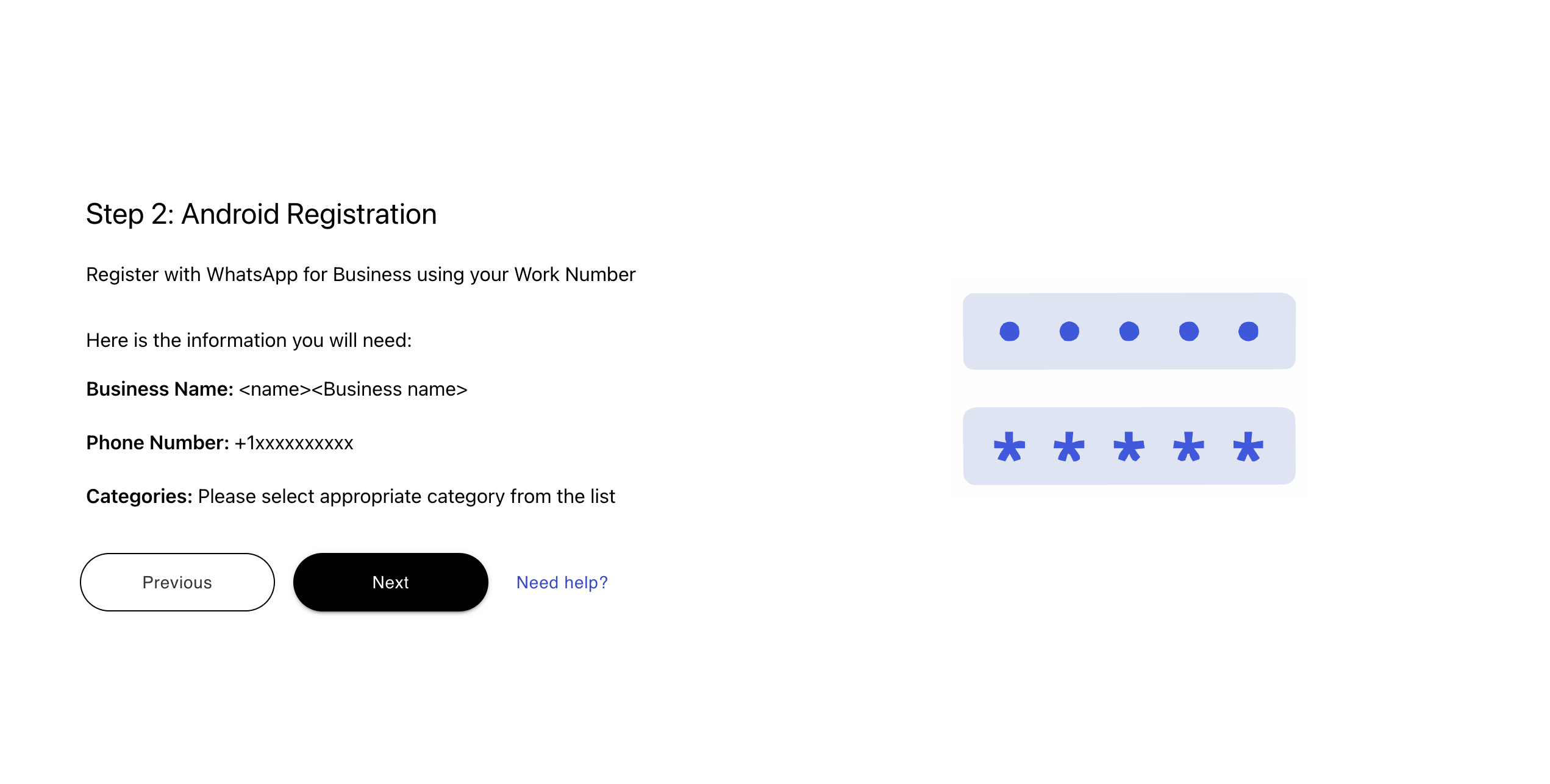
- WhatsApp will authenticate your work number with a 6-digit PIN.
- Enter the name of your organization as ‘Business Name’ while registering on the app.
- Select the appropriate category, if you do not find a category that is right fit for your business, please select Other Categories.
- Select your business hours.
- Add the logo of your organization as a profile photo.
- Enter your website and address.
- Add a business description.
Step 3 - Add a greeting message
Greeting messages are automatically sent to your contacts when they send the first message.

| For more information on setting a Greeting Message, see https://faq.whatsapp.com/501866148528310/?cms_platform=android |

Step 4 – Connect WhatsApp With Movius
In the WhatsApp app, follow the steps to scan a QR code or enter 8-digit mobile code to link with the Movius platform. After clicking Next, you’ll receive an 8-digit PIN for authentication before the WhatsApp QR or mobile code appears.
| For more information on linking the device with QR code or mobile code, see https://faq.whatsapp.com/1317564962315842/?helpref=uf_share |
Android

iOS

Step 5 – Number Authentication
Input the PIN sent to your work phone or email, then select ‘Submit’ to display the WhatsApp QR code or mobile code needed to connect your app with Movius.

- If you do not receive the PIN, you can regenerate the same PIN after 2 minutes.
- If the system returns an error during verification, please wait 15 minutes and then generate a new PIN to retry.
- Do not refresh the page during this process. Refreshing the page will restart the onboarding flow, and you will need to begin again from the start.

Step 6 – Adding Movius to WhatsApp Application
Please scan the QR code or input the mobile code in your WhatsApp Business application. The QR code remains valid for 2 minutes and 30 seconds.

QR code or mobile code will be expired after 2 minutes and 30 seconds and can be regenerated again in few minutes post expiration.
If the QR code or mobile code generation fails, please retry again after few minutes and try changing the browser or clear cache and cookies
If the WhatsApp application fails to link and returns error after entering the code, please try following steps:
1. Check Internet Connection
Ensure both your phone and desktop have a strong and stable internet connection.
Try switching to mobile data or a different Wi-Fi network.
2. Update WhatsApp Business App
Go to the App Store (iOS) or Google Play Store (Android).
Check for updates and install the latest version of WhatsApp Business.
4. Restart Devices
Restart your phone to reset network and background processes.
5. Unlink Old Devices
Open WhatsApp Business on your phone.
Go to Settings > Linked Devices (iOS) or Menu (⋮) > Linked Devices (Android).
Remove any devices you're no longer using.
7. Avoid VPN or Firewall Interference
Disable any VPN, proxy, or firewall on your phone.
These services can block WhatsApp from linking devices.
9. Clear Cache (Android Only)
Go to Settings > Apps > WhatsApp Business > Storage > Clear Cache.
10. Try Again Later
If WhatsApp servers are temporarily busy, you may get a linking error.
Wait for a few minutes and try linking the device again.
Step 7 – Onboarding Complete

Onboarding with Mobile
To onboard the Movius WhatsApp solution, users must connect their WhatsApp application to the Movius platform. This process can be completed by following a series of straightforward steps outlined below.
Note: Please avoid closing or refreshing the page while the onboarding setup is in progress. |
Onboarding Invitation
Open the email invitation on your desktop to begin the onboarding process.
Onboarding invite will direct you to Movius WhatsApp landing page. Click on ‘Lets Start Setup’ button.

Step 1 – Install WhatsApp on iOS or Android Device
Choose the platform where you use the WhatsApp application and click the Next button.

| For more information on downloading and installing WhatsApp Business, see https://faq.whatsapp.com/665643701880397 |
- Select iOS App Store if you are using an iPhone or an apple device, you will then see the instructions to complete onboarding on Apple phone.
- Select Google Play Store(Android) if you are using an Android device, you will then see the instructions to setup WhatsApp Business for your Android phone.
Step 2 – Setup WhatsApp Business Profile
- Register on WhatsApp Business application with your work number.
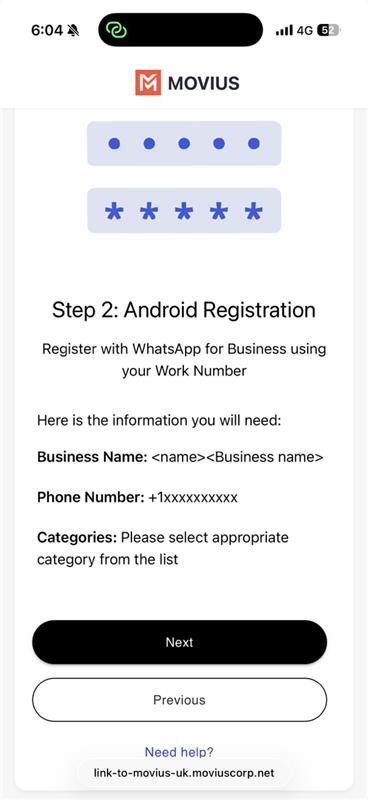
- WhatsApp will authenticate your work number with a 6-digit PIN.
- Enter the name of your organization as ‘Business Name’ while registering on the app.
- Select the appropriate category, if you do not find a category that is right fit for your business, please select Other Categories.
- Select your business hours.
- Add the logo of your organization as a profile photo.
- Enter your website and address.
- Add a business description.
Step 3 - Add a greeting message
Greeting messages are automatically sent to your contacts when they send the first message.

| For more information on setting a Greeting Message, see https://faq.whatsapp.com/501866148528310/?cms_platform=android |
Step 4 – Connect WhatsApp With Movius
Return to the WhatsApp app and follow the steps to scan enter 8-digit mobile code to link with the Movius platform. After clicking Next, you’ll receive an 8-digit PIN for authentication before the WhatsApp QR or mobile code appears.
| For more information on linking the device with QR code or mobile code, see https://faq.whatsapp.com/1317564962315842/?helpref=uf_share |
iOS


Select 'Link with phone number' option and enter the 8 digit code displayed in Step 6.

Step 5 – Number Authentication
Input the PIN sent to your work phone or email, then select ‘Submit’ to display the WhatsApp QR code or mobile code needed to connect your app with Movius.
- If you do not receive the PIN, you can regenerate the same PIN after 2 minutes.
- If the system returns an error during verification, please wait 15 minutes and then generate a new PIN to retry.
- Do not refresh the page during this process. Refreshing the page will restart the onboarding flow, and you will need to begin again from the start.

Step 6 – Adding Movius to WhatsApp Application
Please enter the mobile code in your WhatsApp Business application as described in Step 4. The QR code remains valid for 2 minutes and 30 seconds.

Mobile code will be expired after 2 minutes and 30 seconds and can be regenerated again in few minutes post expiration.
Return to WhatsApp application and enter the 8-digit mobile code to link with Movius.

Give the linked device a name such as "Movius Connect" to complete linking.

If the mobile code generation fails because of below error, please retry again after few minutes and try changing the browser or clear cache and cookies.

If the WhatsApp application fails to link and returns below error after entering the code, please try following steps:

1. Check Internet Connection
Ensure both your phone and desktop have a strong and stable internet connection.
Try switching to mobile data or a different Wi-Fi network.
2. Update WhatsApp Business App
Go to the App Store (iOS) or Google Play Store (Android).
Check for updates and install the latest version of WhatsApp Business.
4. Restart Devices
Restart your phone to reset network and background processes.
5. Unlink Old Devices
Open WhatsApp Business on your phone.
Go to Settings > Linked Devices (iOS) or Menu (⋮) > Linked Devices (Android).
Remove any devices you're no longer using.
7. Avoid VPN or Firewall Interference
Disable any VPN, proxy, or firewall on your phone.
These services can block WhatsApp from linking devices.
9. Clear Cache (Android Only)
Go to Settings > Apps > WhatsApp Business > Storage > Clear Cache.
10. Try Again Later
If WhatsApp servers are temporarily busy, you may get a linking error.
Wait for a few minutes and try linking the device again.
Step 7 – Onboarding Complete

Note: Movius WhatsApp Capture supports the capture of attachments up to 50 MB in size. While WhatsApp supports attachments of up to 2 GB, attachments larger than 50 MB are not captured and may not be available for compliance recording or archival purposes. Users should ensure that any business-critical content shared via WhatsApp remains within the supported capture limit.
